Amazon S3 bucket to sync files on Linux server
Step-by-step Guide to Synchronize Data Between Amazon S3 Buckets
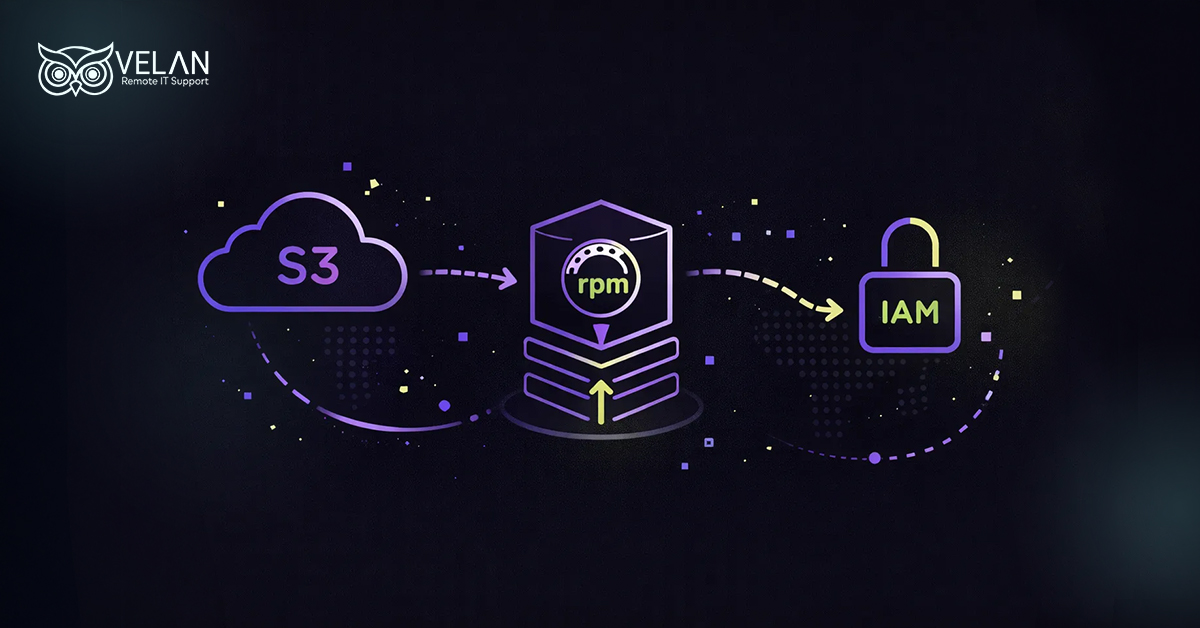
Amazon S3 is Simple Storage Service available with AWS services package. This can be used to store your backup data, application files, and directories. S3 is highly scalable and offers top security while storing and accessing data.
Amazon Web Services can be easily automated and managed using AWS-CLI. It is command-based and allows you to control AWS straight from your terminal.
AWS CLI is a text-based interface, whereas AWS Management Console is a visual based one
Check whether you have the following before starting file syncing
- An AWS account
- An IAM user with all the permissions to access the bucket.
- The AWS CLI installed on your Linux server.
- AWS CLI configured using your credentials and default region.
Installation procedure for AWS CLI in Linux systems
To synchronise files between a Linux server and an Amazon S3 bucket, you should use the official AWS Command Line Interface (CLI) tool.
To install AWS CLI, type the following commands.
curl “https://awscli.amazonaws.com/awscli-exe-linux-x86_64.zip” -o “awscliv2.zip”
unzip awscliv2.zip
sudo ./aws/install
Tip: Not sure whether AWS CLI is installed or not? Then run the command aws –version.
If the installation is successful the terminal displays a message like

If not done, then it will display a ‘command not found’ error.
AWS CLI configuration procedure
You can configure the AWS CLI with credentials by running:
- Login to AWS account→ IAM Service →Create new user (With programmatic access) → Assign the user permission.
- Go to Security credentials→Create a new access key
- Take note of the secret access key and access key ID.
- Go back to the terminal
- Run the command: aws configure
- Input the Access key ID, Secret access key, and region
Tip: You can check whether the connection between CLI and AWS services account is established by using
aws sts get-caller-identity
AWS S3 Bucket configuration
Here, we are using the AWS Management Console to do the S3 bucket configuration. It would be a bit easier, as we have a visual interface with the management console.
1. Go to Management Console → S3 Service page → Create bucket
2. Create a bucket name→Click ‘Create’
Tip: Use the following command in the CLI to verify the status
aws s3 ls
Synchronizing files with Amazon S3 Bucket
- To sync all files in a directory
In the CLI, run the following:
aws s3 sync /home/john/projects s3://company-backups/projects/
Tip: If the destination doesn’t have the directory name ‘projects,’ it will be automatically created. - To copy a single file
aws s3 cp /home/john/reports/sales-report.pdf s3://company-backups/reports/
Tip: It is possible to download a file from an Amazon S3 bucket. Simply reverse the source and destination in the aws s3 cp command. - To sync new or modified files
Run the command:
aws s3 sync /home/john/projects/ s3://company-backups/projects/ –exact-timestamps - Excluding a particular file
Run in CLI
aws s3 sync /home/john/projects/ s3://company-backups/projects/ –exclude “*.py”
Troubleshooting tips for Sync Errors
1. Access denied error
Reason: IAM does not have the proper permissions needed.
Solution
- Your IAM user should have the s3:ListBucket, s3:GetObject, and s3:PutObject permissions.
- Are you using the correct credentials? Verify it running “aws configure list”
- Check whether your user access is allowed/denied by the S3 bucket policy.
- Check whether the bucket blocks the public access.
- Confirm that Service Control Policies (SCPs) are not blocking access.
- After updating permissions, run the “aws s3 sync” command again.
2. No such file or directory error
Reason: Source path is not valid or does not exist.
Solution:
- Check for the types of errors in the source name entered. Also verify the naming errors with bucket names and local directories.
- Verify if such a source really exists or not.
3. File size limit errors
Reason: File size exceeds the S3 bucket capacity, resulting in timeouts or partial transfers. Note that S3 bucket can handle up to 5GB for a single upload transfer.
Solution:
- If the file transfer size is more than 5B, use the command below.
- aws s3 sync /home/john/large-files/ s3://company-backups/large-files/ –only-show-errors –size-only
Tip:
–size-only flag is used when the file timestamps have changed, but the file contents remain the same.
–only-show-errors can reduce unnecessary output messages when synchronizing a large number of files.
Want to configure Amazon S3 bucket and optimize its syncing performance?
Let our experts help you.
We are a team of certified AWS engineers, cloud specialists, and troubleshooting experts.
Finding difficulty in configuring Amazon S3 bucket in your Linux server? Contact Velan Remote IT Support to get professional guidance and assistance to cover end-to-end tasks in AWS S3 syncing.
With 19+ years of experience we have established ourselves as a trusted outsourced managed IT service provider serving SMBs, corporate companies, startups in all industry verticals.
The ISO 9001 and ISO 27001 certifications showcase our commitment to delivering best quality solutions and data privacy.
Contact our team at [email protected] to get a free consultation on all your cloud-related needs.
Some more information about Amazon S3 bucket for file syncing
Do parallel uploads using the –max-concurrent-requests option.
Adjust the multipart upload chunk size with –multipart-chunksize
Increase read timeout and reduce transfer issues use –cli-read-timeout
Add the –only-show-errors option to make it easier to identify issues during large transfers.
Use the –size-only option to compare files based on their size instead of timestamps.
For files larger than 5 GB use –only-show-errors and –size-only to make synchronization faster and reduce unnecessary console output.
Amazon S3 is a cloud resource offering storage space to save your files. The fields are stored as ‘objects’ inside the bucket. This differs from other storage types in the point that it doesn’t use any hierarchical architecture. Which means instead of traditional folders, unique identifying keys are used to organize and retrieve files.
It is possible. You can set Cron jobs (the scheduler tool) in Linux server to regularly execute the backup process with time stamps.
Categories
- Applications 011