Deploy a Node.js App to AWS Fargate, Step by Step
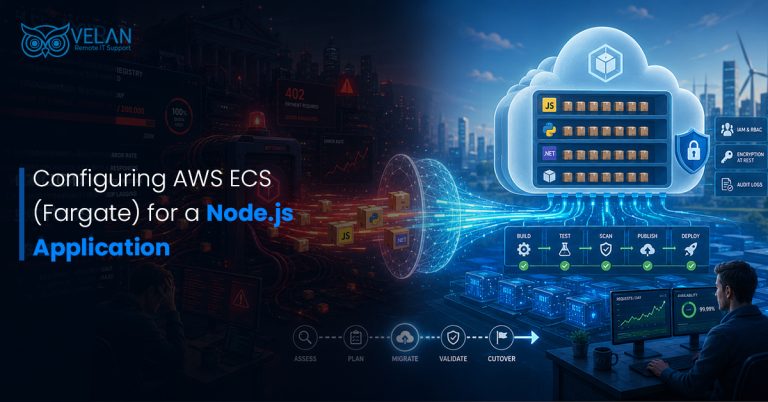
How to Deploy Node.js to AWS ECS Using Fargate
AWS ECS Fargate is a container service from AWS. You can run Docker containers without managing a server or underlying infrastructure.
The service is suitable for deploying
Microservices
Web applications
Batch jobs
Key Features of AWS ECS Fargate:
Manages the underlying infrastructure.
Scales containers based on application needs and configured rules.
Pay-as-you-go model.
Integrates with Elastic Load Balancing, Amazon RDS, and IAM.
Isolates workloads and connects to AWS security measures.
To deploy a Node.js application
Containerize the Node.js app
Push the image to ECR
Define a task definition
Use an ALB with HTTPS to run it as an ECS service.
Client → HTTPS → ALB → HTTP → ECS Service (Fargate Tasks) → Node.js Container
Supporting AWS Services:
Amazon ECR – Stores Docker images.
CloudWatch Logs – Collects application logs.
AWS IAM – Manages access permissions.
AWS Certificate Manager – Offers the HTTPS SSL/TLS certificate.
For image deployment: Docker Image → Amazon ECR → ECS Fargate Task
For application traffic: Client → HTTPS → ALB → HTTP → ECS Fargate → Node.js Container
For application logging: Node.js Container → CloudWatch Logs
Prerequisites
- AWS account with permissions for ECS, ECR, IAM, EC2/VPC, ELB, and CloudWatch
- AWS CLI v2 configured (aws configure) and Docker installed locally
- A VPC with at least two public subnets (for the ALB) in different Availability Zones
- A Node.js app that listens on a known port (example: 3000) and exposes a health endpoint such as /health
- Optional: a domain and an ACM certificate for HTTPS
Set variables used throughout:
bash
export AWS_REGION=ap-south-1
export ACCOUNT_ID=$(aws sts get-caller-identity –query Account –output text)
export APP=node-app
- Step 1: Containerize the Application
Dockerfile (multi-stage, non-root):
dockerfile
FROM node:20-alpine AS deps
WORKDIR /app
COPY package*.json ./
RUN npm ci –omit=dev
FROM node:20-alpine
WORKDIR /app
ENV NODE_ENV=production
COPY –from=deps /app/node_modules ./node_modules
COPY . .
USER node
EXPOSE 3000
CMD [“node”, “server.js”]
Add a .dockerignore containing node_modules, .git, and .env.
Make sure the app binds to all interfaces, not just localhost:
js
app.listen(process.env.PORT || 3000, ‘0.0.0.0’);
app.get(‘/health’, (req, res) => res.status(200).send(‘ok’)); - Step 2: Configure an ECR Repository and Upload the Image
bash
aws ecr create-repository –repository-name $APP –image-scanning-configuration scanOnPush=true
aws ecr get-login-password –region $AWS_REGION | \
docker login –username AWS –password-stdin ACCOUNTID.dkr.ecr.AWS_REGION.amazonaws.com
docker build -t $APP .
docker tag $APP:latest ACCOUNTID.dkr.ecr.AWS_REGION.amazonaws.com/$APP:v1
docker push ACCOUNTID.dkr.ecr.AWS_REGION.amazonaws.com/$APP:v1
Use immutable, versioned tags (e.g., v1 or a Git SHA) rather than relying on latest. - Step 3: IAM Task Execution Role Creation
bash
aws iam create-role –role-name ecsTaskExecutionRole \
–assume-role-policy-document ‘{
“Version”:”2012-10-17″,
“Statement”:[{“Effect”:”Allow”,”Principal”:{“Service”:”ecs-tasks.amazonaws.com”},”Action”:”sts:AssumeRole”}]
}’
aws iam attach-role-policy –role-name ecsTaskExecutionRole \
–policy-arn arn:aws:iam::aws:policy/service-role/AmazonECSTaskExecutionRolePolicy
Skip this if the account already has “ecsTaskExecutionRole”.
For secrets from “Secrets Manager” or “SSM Parameter Store”, add a policy granting read access to those specific resources.
If the app itself calls “AWS services (S3, SQS)”, create a separate task role with least-privilege permissions. - Step 4: Create the Cluster and Log Group
bash
aws ecs create-cluster –cluster-name $APP-cluster
aws logs create-log-group –log-group-name /ecs/$APP
aws logs put-retention-policy –log-group-name /ecs/$APP –retention-in-days 30 - Step 5: Register the Task Definition
task-def.json:
json
{
“family”: “node-app”,
“networkMode”: “awsvpc”,
“requiresCompatibilities”: [“FARGATE”],
“cpu”: “256”,
“memory”: “512”,
“executionRoleArn”: “arn:aws:iam::<ACCOUNT_ID>:role/ecsTaskExecutionRole”,
“containerDefinitions”: [
{
“name”: “node-app”,
“image”: “<ACCOUNT_ID>.dkr.ecr.ap-south-1.amazonaws.com/node-app:v1”,
“essential”: true,
“portMappings”: [{ “containerPort”: 3000, “protocol”: “tcp” }],
“environment”: [{ “name”: “NODE_ENV”, “value”: “production” }],
“secrets”: [
{ “name”: “DB_PASSWORD”, “valueFrom”: “arn:aws:secretsmanager:ap-south-1:<ACCOUNT_ID>:secret:node-app/db-xxxxxx” }
],
“healthCheck”: {
“command”: [“CMD-SHELL”, “wget -qO- http://localhost:3000/health || exit 1”],
“interval”: 30, “timeout”: 5, “retries”: 3, “startPeriod”: 15
},
“logConfiguration”: {
“logDriver”: “awslogs”,
“options”: {
“awslogs-group”: “/ecs/node-app”,
“awslogs-region”: “ap-south-1”,
“awslogs-stream-prefix”: “ecs”
}
}
}
]
}
Replace the <ACCOUNT_ID> placeholders, then register:
bash
aws ecs register-task-definition –cli-input-json file://task-def.json
Note: alpine images include wget through BusyBox, which the health check above relies on. - Step 6: Create Security Groups
ALB security group: inbound 80 and 443 from 0.0.0.0/0
Task security group: inbound 3000 only from the ALB security group
bash
aws ec2 create-security-group –group-name alb-sg –description “ALB” –vpc-id <VPC_ID>
aws ec2 create-security-group –group-name task-sg –description “ECS tasks” –vpc-id <VPC_ID>
aws ec2 authorize-security-group-ingress –group-id <ALB_SG> –protocol tcp –port 443 –cidr 0.0.0.0/0
aws ec2 authorize-security-group-ingress –group-id <ALB_SG> –protocol tcp –port 80 –cidr 0.0.0.0/0
aws ec2 authorize-security-group-ingress –group-id <TASK_SG> –protocol tcp –port 3000 –source-group <ALB_SG> - Step 7: Create the Load Balancer, Target Group, and Listeners
bash
aws elbv2 create-load-balancer –name $APP-alb –subnets <SUBNET_1> <SUBNET_2> –security-groups <ALB_SG>
aws elbv2 create-target-group –name $APP-tg –protocol HTTP –port 3000 \
–vpc-id <VPC_ID> –target-type ip \
–health-check-path /health –health-check-interval-seconds 30
The target type must be ip for Fargate with awsvpc networking.
Create the listeners (HTTPS forwards to the app, HTTP redirects to HTTPS):
bash
aws elbv2 create-listener –load-balancer-arn <ALB_ARN> –protocol HTTPS –port 443 \
–certificates CertificateArn=<ACM_CERT_ARN> \
–ssl-policy ELBSecurityPolicy-TLS13-1-2-2021-06 \
–default-actions Type=forward,TargetGroupArn=<TG_ARN>
aws elbv2 create-listener –load-balancer-arn <ALB_ARN> –protocol HTTP –port 80 \
–default-actions ‘Type=redirect,RedirectConfig={Protocol=HTTPS,Port=443,StatusCode=HTTP_301}’ - Step 8: Create the ECS Service
bash
aws ecs create-service \
–cluster $APP-cluster \
–service-name $APP-service \
–task-definition node-app \
–desired-count 2 \
–launch-type FARGATE \
–network-configuration “awsvpcConfiguration={subnets=[<SUBNET_1>,<SUBNET_2>],securityGroups=[<TASK_SG>],assignPublicIp=ENABLED}” \
–load-balancers “targetGroupArn=<TG_ARN>,containerName=node-app,containerPort=3000” \
–health-check-grace-period-seconds 30 \
–deployment-configuration “deploymentCircuitBreaker={enable=true,rollback=true},minimumHealthyPercent=100,maximumPercent=200”
Notes:
For production, place tasks in private subnets with a NAT gateway (or VPC endpoints for ECR, S3, and CloudWatch Logs) and set assignPublicIp=DISABLED.
The deployment circuit breaker automatically rolls back failed deployments. - Step 9: Point DNS to the ALB
Create a Route 53 alias record (or a CNAME at your DNS provider) from app.example.com to the ALB DNS name.
- Step 10: Configure Auto Scaling
bash
aws application-autoscaling register-scalable-target \
–service-namespace ecs –scalable-dimension ecs:service:DesiredCount \
–resource-id service/APP-cluster/APP-service –min-capacity 2 –max-capacity 6
aws application-autoscaling put-scaling-policy \
–service-namespace ecs –scalable-dimension ecs:service:DesiredCount \
–resource-id service/APP-cluster/APP-service \
–policy-name cpu-target –policy-type TargetTrackingScaling \
–target-tracking-scaling-policy-configuration ‘{
“TargetValue”: 60.0,
“PredefinedMetricSpecification”: {“PredefinedMetricType”: “ECSServiceAverageCPUUtilization”},
“ScaleInCooldown”: 120, “ScaleOutCooldown”: 60
}’ - Step 11: Deploy Updates
bash
docker build -t $APP . && docker tag $APP:latest ACCOUNTID.dkr.ecr.AWS_REGION.amazonaws.com/$APP:v2
docker push ACCOUNTID.dkr.ecr.AWS_REGION.amazonaws.com/$APP:v2
# Update the image tag in task-def.json, register a new revision, then:
aws ecs update-service –cluster $APP-cluster –service $APP-service –task-definition node-app
ECS performs a rolling deployment. For automation, use GitHub Actions or AWS CodePipeline with the same build, push, register, and update sequence.
Validate
bash
aws ecs describe-services –cluster $APP-cluster –services $APP-service \
–query “services[0].{running:runningCount,desired:desiredCount,events:events[0:3]}”
curl -I https://app.example.com/health
aws logs tail /ecs/$APP –follow
Security and Operations Best Practices
- Keep secrets in “Secrets Manager” or “SSM Parameter Store”. Never in the image or plain environment variables.
- For tasks and least-privilege task roles, use private subnets.
- Enable “ECR image scanning.” Use specific base image versions.
- Run as a non-root user. Configure read-only root filesystem wherever the app allows it.
- Set “CloudWatch” alarms to monitor CPU, memory, unhealthy host count and ALB 5xx errors.
- Activate “Container Insights” to analyze metrics at the cluster level.
- Tagging all resources helps with cost tracking.
Troubleshooting Common AWS ECS Fargate Node.js Deployment Errors
| Symptom | Likely Cause | Fix |
| Task stops with CannotPullContainerError | No route to ECR, or missing execution role permissions | Enable a public IP or NAT/VPC endpoints; verify the execution role policy. |
| Targets show unhealthy | Wrong health check path/port, or app bound to localhost. | Bind to 0.0.0.0, confirm /health returns 200, and check the task security group. |
| The task exits immediately. | App crash or missing environment variables. | Check /ecs/node-app logs and the stopped task reason. |
| OutOfMemoryError / task killed (exit 137) | Memory limit too low. | Increase task memory and tune Node’s –max-old-space-size . |
| Deployment stuck or rollingback. | Failing health checks on the new revision. | Review logs and the circuit breaker events; fixand redeploy. |
| 502/503 from ALB | No healthy targets or app timeout. | Check target health and increase the idle timeout if needed. |
Conclusion
Teams can set up and manage Node.js applications easily with AWS ECS Fargate. Also, continuous observation helps your application stay reliable.
Many businesses do not have a committed monitoring team or sufficient experience to solve technical issues. In such cases, partnering with an MSP agency offers you the right support.
Velan Remote IT Support is a leading managed services provider with certified AWS experts to deliver top-quality AWS solutions for application development companies.
Contact us for a consultation at [email protected].
Hire a cloud support team from Velan to manage your AWS environment.
AWS managed services ensure highly available cloud systems and applications through continuous monitoring and maintenance support.
Read questions and answers about AWS
ECS has no direct orchestration charge. You only pay for the underlying compute infrastructure and associated AWS resources.
Our cloud consultants assess your objectives, workload, and security requirements. We then suggest suitable services that can deliver better results. Our team also offers cloud cost optimization services to reduce cloud bills while improving performance.
Before starting a project, we provide a detailed assessment of your IT infrastructure and goals. We create a practical strategy that can deliver maximum ROI. Our team onboards quickly and delivers solutions based on your requirements.
Categories
- Applications 014