Quick Guide to Use Azure Pricing Calculator in 2026
How to Use the Azure Pricing Calculator to Estimate and Budget Cloud Costs?

Introduction on Azure Pricing Calculator
When you are planning to move your legacy system into the Azure cloud, the very first question that comes to your mind is, ’How much does it cost, and can I afford it?’ In this blog, we will see how you can budget and forecast cloud expenses using the Azure Pricing Calculator.
What is the Azure Pricing Calculator?
Microsoft offers a free tool to calculate the cost of Azure services and features. You can configure various metrics like region, details of OS and instances, number of VMs, storage information, desired pricing model, and more. After setting your preferences and resource details, you can get the estimated cost and upfront cost.
Benefits of the Azure Pricing Calculator
- Businesses can estimate and plan cloud expenses
- Allows customization of resources based on your requirements
- Possible to compare costs for different service configurations and pricing structures
- Download and share the estimate
Tip: From the Estimate Templates tab, you can access templates available for common scenarios. Simply select and check the costs. If needed, you can change the input values accordingly.
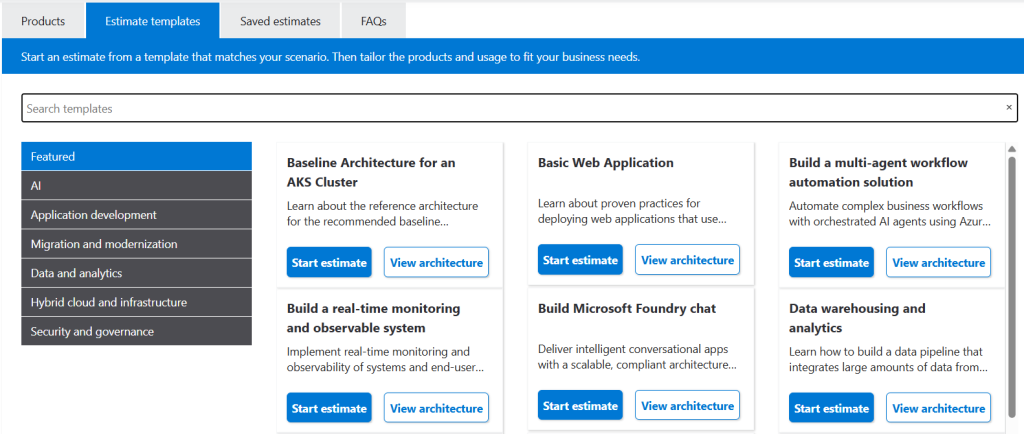
Now, let us estimate how much your workload will cost on the Azure cloud migration.
Customizing the Azure Pricing Calculator Settings From Scratch
Visit Microsoft’s official page to access the Azure Pricing Calculator. Sign-in is not mandatory, but it is recommended to log in, as it would be helpful if you want to share, save, or revisit the cost estimate and use your Azure agreement pricing.
Let us start by assuming that we are calculating the expenses for VMs.
Step 1: Using the Interface
Access the Azure Pricing Calculator tool.
Select the Products tab (Selected by default) → Virtual Machines → Add to Estimate
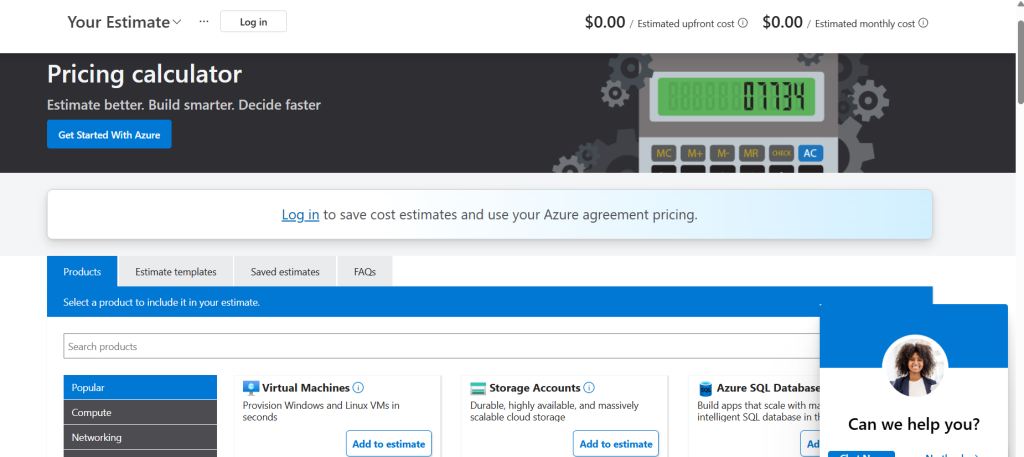
On scrolling down, you can see an estimate page below. Here you can configure all your specifications.
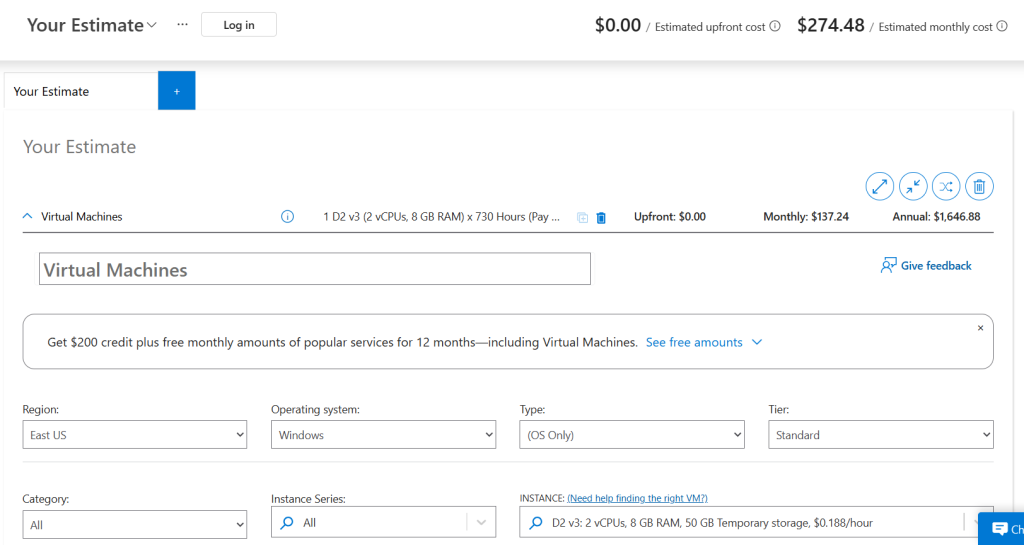
Step 2: Configuring Parameters
Choose your region, as Azure prices vary by location. It depends on the local infrastructure and energy costs. Also, Azure services may not be available in some regions. So choose the exact region or the closest one.
Select relevant values for other parameters like OS, type, tier, category, instance series, number of VMs, time, and license from the dropdown lists.
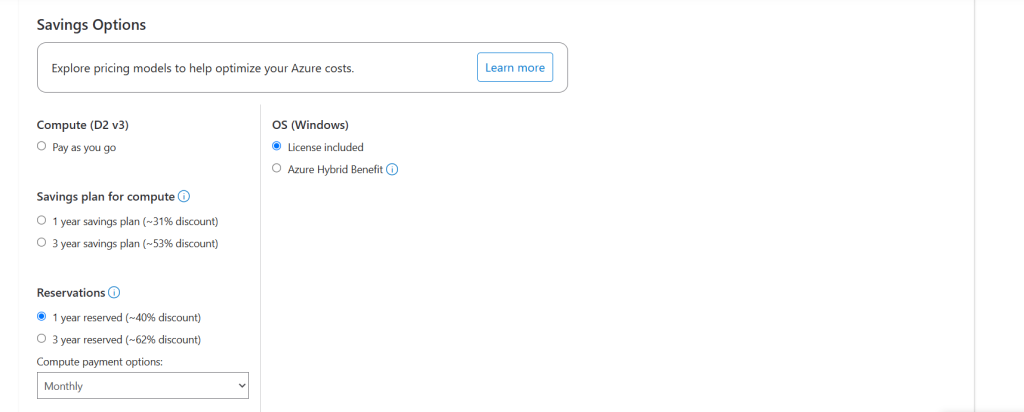
You can also explore the pricing details and savings plans just below the configuration panel. Here you can enable Snapshots, confidential OS encryption, and bandwidth at additional prices.
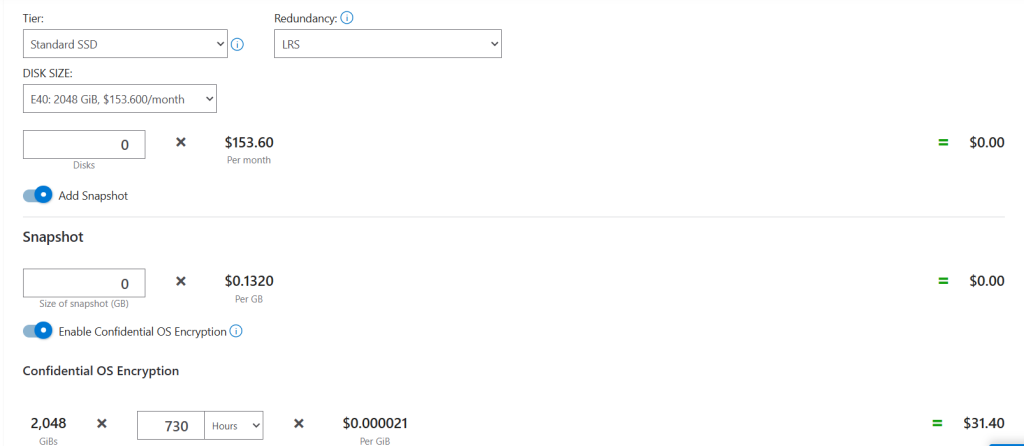
Step 3: Addition of Services
If you want to add additional workloads, move to the product tab, then click Add to estimate.
Say, for example, ‘Storage Accounts’ → Add to estimate.
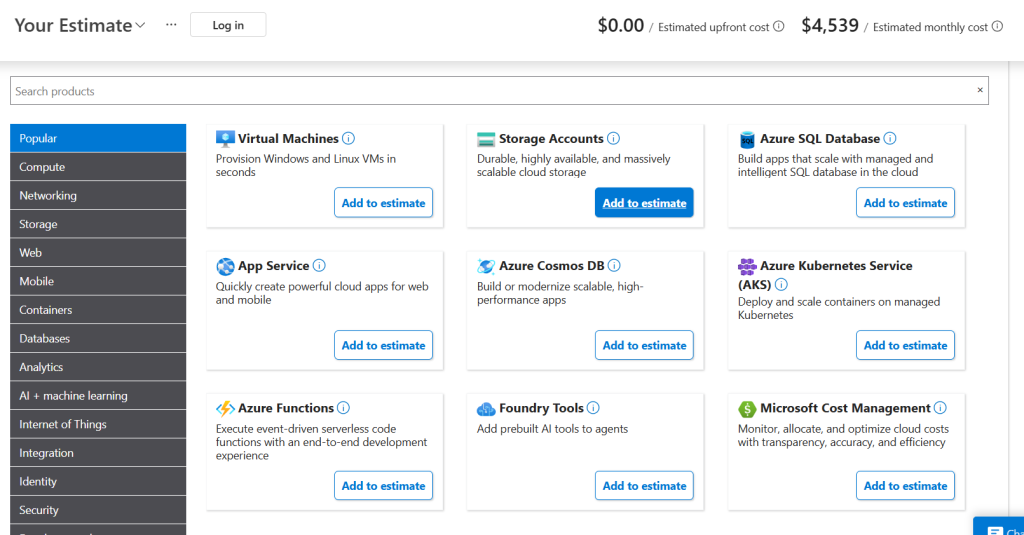
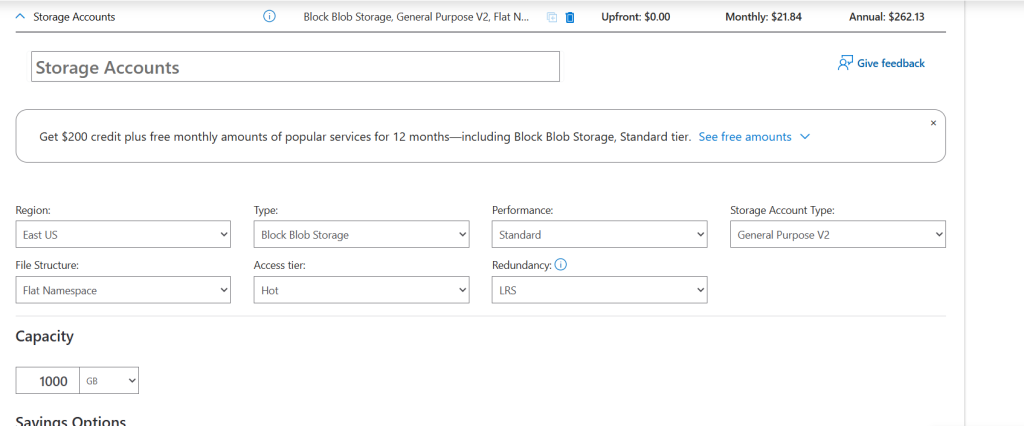
You can see a new pane for configuring storage accounts just below the VM configuration that we did earlier. Choose the parameters from the dropdown lists. If you want to add more workloads, follow the previous steps again. Adjust parameters and configure each service in detail.
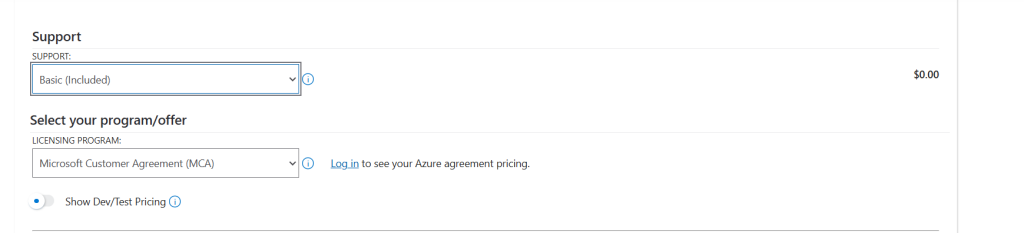
Also, choose the support level as per your needs. Basic support is included in the service package and is free of cost. Be aware that the support plan you choose influences your total costs. Premium plans like Developer, Standard, and Professional Direct offer faster response times and extended support at a higher price tag.
Select your licensing program, which also determines your Azure cloud expenses. Licensing costs vary depending on the agreement you choose. Larger commitments often provide more favorable pricing and higher discounts than flexible licensing options.
Step 4: Review and Reconfigure the Estimate
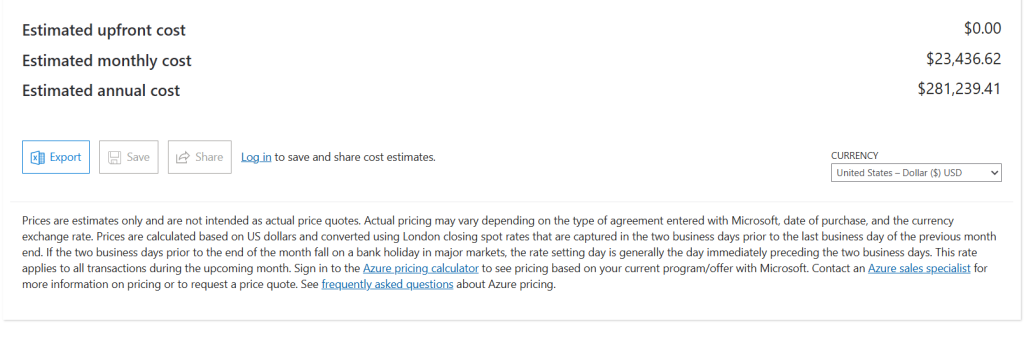
The calculator displays all three upfront costs, monthly costs, and annual costs in the bottom right corner of the configuration pane. A detailed price breakdown is also displayed under every item. You can change the service/saving plans to match your budget.
Step 5: Export, Save, and Share
- You can export the estimate as an Excel file for future review
- Save the estimates in your account, provided you are signed in
- Share the estimate with your teammates as a link
- You can also change the currency option on the right side of the panel
Tip: The same method can be followed for estimating the cost of any services available with the Azure cloud before deploying.
Want to keep your Azure costs under control?
Connect with Velan’s Azure experts to discover proven cost optimization strategies that maximize the value of your cloud investment. From Azure strategy and migration to ongoing management and support, we deliver end-to-end Azure cloud services designed to improve performance and scalability and keep your cloud costs under control.
Mistakes to Avoid While Using Azur Calculator
Overestimating resource requirements
Excess resource allocation leads to avoidable expenses. Monitor utilization and optimize resource sizing regularly.
Selecting a region without comparing costs
Different Azure regions have different pricing models. Choosing a cost-effective region can significantly reduce your cloud spend.
Relying on outdated cost projections
Static estimates quickly become inaccurate as your environment changes. Refresh your cost estimates periodically to maintain budget accuracy.
Azure Cost Estimation Best Practices
Create estimates for different scenarios
Do not stop at a single estimate. Create separate pricing projections for different environments such as development, testing, and production.
Comparing multiple scenarios helps you identify the most cost-effective Azure configuration before deployment.
Utilize Azure cost-saving options
If you already have a valid Windows Server or SQL Server license, you can apply the Azure Hybrid Benefit to save money.
For services like VMs, you can choose a service term for one year or 3 years. Long-term commitment offers significant cost benefits.
Plan for changing workloads
If your application has busy hours or seasonal spikes, use the Azure Autoscale feature in the cost calculation to reflect changing resource usage.
Include networking costs in your estimate
Many organizations focus on compute and storage costs but overlook networking expenses. Be sure to account for outbound data transfers, inter-region data transfers, and bandwidth usage, as these can noticeably impact your overall Azure bill.
Tip: If you’re planning to migrate from on-premises infrastructure, don’t compare only monthly cloud costs. Use the Azure TCO Calculator to calculate infrastructure, maintenance, geo-redundant storage (GRS) costs, electricity costs, and labor costs. This provides a more accurate understanding of your long-term savings after moving to Azure.
Reduce Your Azure Costs by Up to 60%
Save more by outsourcing Azure management to Velan. Our experts assess your infrastructure to find opportunities to reduce spend while keeping workloads running smoothly.
Final Thoughts
To properly manage cloud expenditures, you must learn how to use the Azure Pricing Calculator. Businesses can maximize Azure benefits by estimating costs carefully and refining those estimates over time.
Utilize all of Azure cost management features and savings plans to keep up with Azure’s pricing changes, and revise your estimations frequently. This helps in controlling your cloud expenditures.
If need the consultation or service based solutions, Contact Velan Remote IT Support, Who offer Azure Cloud Services for different businesses.
People Also Ask These Questions About Azure Pricing Calculator
Azure Pricing Calculator is obviously a free tool offered by Microsoft to calculate the cost of Azure services before you make a purchase. Clients can choose and set up services like databases, storage, VMs, networks, containers, DevOps, and more to evaluate how various choices and configurations would affect their Azure expenses.
Azure Pricing Calculator is obviously a free tool offered by Microsoft to calculate the cost of Azure services before you make a purchase. Clients can choose and set up services like databases, storage, VMs, networks, containers, DevOps, and more to evaluate how various choices and configurations would affect their Azure expenses.
The Azure Pricing Calculator helps you estimate the Azure service costs based on what you plan to use.
The Azure TCO Calculator helps you compare your current on-premises infrastructure expenses with the savings you get by migrating it to Azure.
Not exactly. The tool gives only an approximate value based on the latest price for your selected region. Your actual bill may vary depending on the Azure plan, discounts, and special pricing agreements you choose.
The Azure Pricing Calculator is designed exclusively for Azure services. If your environment includes on-prem infrastructure or other cloud providers, the calculator will not give a complete view of your total costs. You will need additional planning and cost analysis to estimate the overall deployment and operating costs accurately.
Categories
- Applications 013