How to Use GPO to Lock Screen After Inactivity on Windows
Auto Lock Computer Screen After Inactivity Using GPO
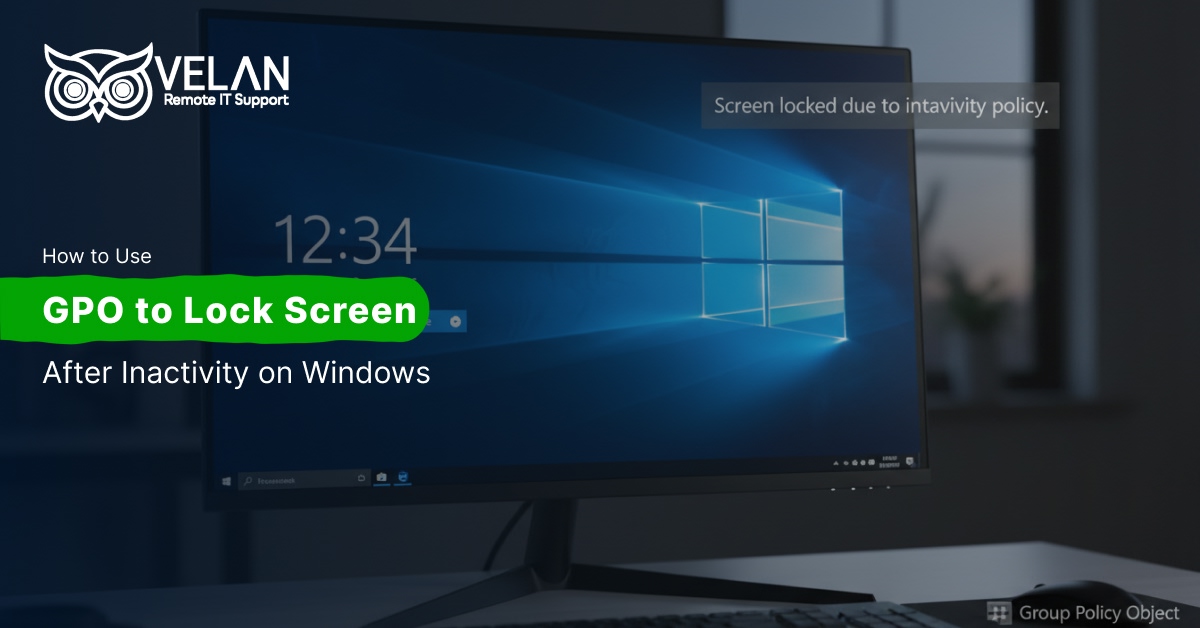
Automated screen locking on domain workstations and servers can be set up using Group Policy, enhancing information security. This guide explains the importance of locking computers when idle and provides step-by-step instructions for IT administrators on implementing the Interactive Logon Machine Inactivity Limit policy, password protection, screen saver timeout, and registry settings.
Security Note
A screensaver with a password is an example of a session lock. It is one of the simplest and most effective controls you can enforce centrally via Group Policy (GPO) — requiring zero end-user action.
Our blog covers every method available, including the classic GPO screen saver timeout path, the newer Interactive Logon: Machine Inactivity Limit policy, and registry-based deployment for granular control.
Method 1: GPO Lock Screen via Screen Saver Settings (User Configuration)
This is the most widely used approach. It configures the screen saver timeout and enforces password-on-resume through the Group Policy Management Console (gpmc.msc).
Step-by-Step Process For Creating and Linking the GPO
Open Group Policy Management Console
On your domain controller (or a machine with RSAT installed), press Win + R, type gpmc.msc, and press Enter. This opens the Group Policy Management Console.
Create a New GPO Object
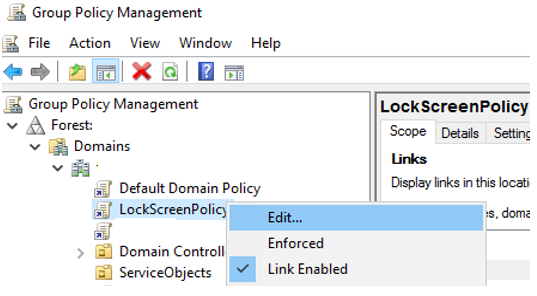
Right-click your domain root (or the specific Users OU you want to target) and select Create a GPO in this domain, and Link it here… Name it something descriptive like LockScreenPolicy.
Navigate to the Personalization Policies
Right-click your new GPO and select Edit. In the Group Policy Management Editor, navigate to:
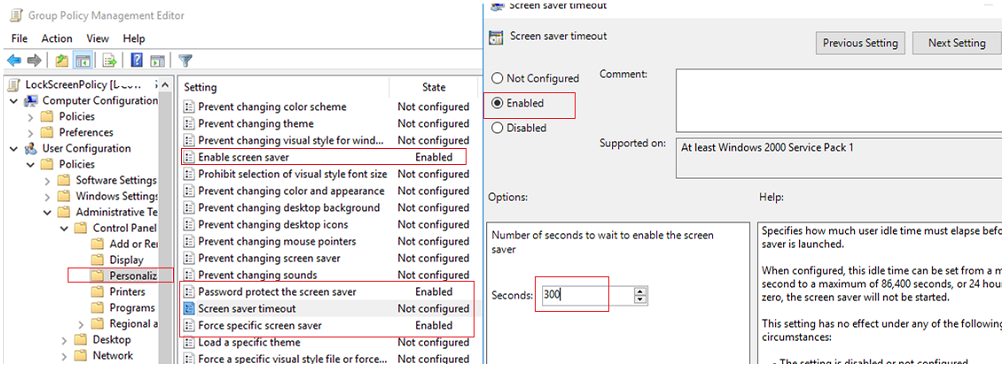
Make changes to the policy. Go to User Configuration -> Policies -> Administrative Templates -> Control Panel -> Personalization and make changes.
Configure the Four Key Screen Saver Policies
In the Personalization node you will see several settings. Configure each as follows:
| Policy Setting | Value | Purpose |
|---|---|---|
| Enable Screen Saver | Enabled | Activates the screen saver feature — required for other settings to take effect |
| Screen Saver Timeout | Enabled → e.g. 300 (5 min), 600 (10 min), 900 (15 min) | Sets the idle period in seconds before the screen saver starts and the session locks |
| Password Protect the Screen Saver | Enabled | Forces the user to enter their domain password to return to the session |
| Force Specific Screen Saver | Enabled → scrnsave.scr (blank) or your chosen .scr file | Prevents users selecting a different screen saver; use a blank one for performance |
Apply and Force a Group Policy Update
Close the editor. The policy will propagate automatically at the next Group Policy refresh cycle (typically every 90 minutes). To apply immediately on a target machine, open an elevated Command Prompt and run:
gpupdate /force
After the update, screen saver and lock settings will be greyed out in the Windows interface — users will be unable to alter or disable the screen lock policy.
Result:
Domain workstations will now automatically lock after the configured idle period. The user must re-enter their domain password to resume their session — this is automatic session locking enforced via GPO.
Method 2: Interactive Logon — Machine Inactivity Limit (Computer Configuration)
Available from Windows Server 2012 / Windows 8 onwards, the Interactive Logon: Machine Inactivity Limit policy is a dedicated computer-level security setting that locks the workstation independently of screen saver settings. This is generally considered the more robust approach for servers and shared machines.
Policy Path
You may locate it in Computer Configuration -> Windows Settings -> Security Settings -> Local Policies -> Security Options
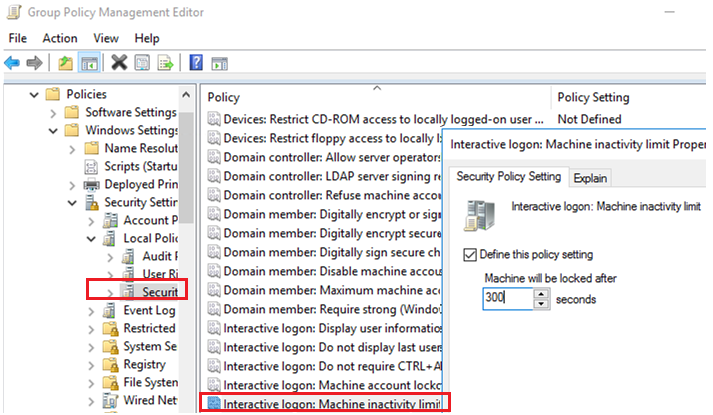
Double-click the policy and set a value in seconds. For example, enter 300to lock after 15 minutes of inactivity. The maximum allowed value is 599940 seconds.
Registry Key for This Policy
This policy writes to the following registry location, which you can also deploy directly via GPO Preferences:
HKEY_LOCAL_MACHINE\SOFTWARE\Microsoft\Windows\CurrentVersion\Policies\System

InactivityTimeoutSecs = 900 (REG_DWORD, value in seconds)ImportantTheInteractive Logon Machine Inactivity Limitapplies at the computer level, meaning it applies regardless of which user is logged in. It is particularly suited for servers, kiosks, and shared terminals where screen saver-based policies are less reliable.
Method 3: Deploy Lock Settings via Registry and GPO Preferences
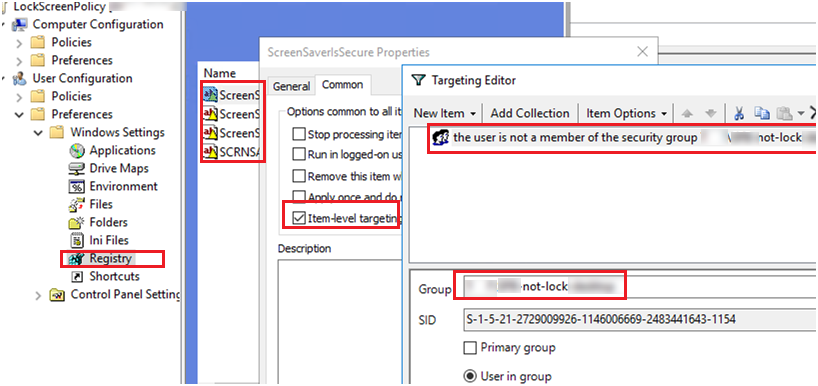
For maximum control — especially when you need different policies for different groups — you can deploy the underlying registry values directly using Group Policy Preferences (GPP). This gives you Item-Level Targeting capability (covered in the next section).
Registry Keys (HKCU) for Screen Lock Policies
All values live under:
HKEY_CURRENT_USER\Software\Policies\Microsoft\Windows\Control Panel\Desktop| Registry Value Name | Type | Value | Effect |
|---|---|---|---|
ScreenSaveActive | REG_SZ | 1 (enable) / 0 (disable) | Enables or disables the screen saver |
ScreenSaveTimeOut | REG_SZ | 300 (5 min), 900 (15 min), etc. | Idle time in seconds before screen saver activates |
ScreenSaverIsSecure | REG_SZ | 1 (password required) / 0 (no password) | Whether a password is required to unlock |
SCRNSAVE.EXE | REG_SZ | scrnsave.scr | Forces a specific screen saver executable |
To deploy these via GPP, navigate in the GPO editor to
User Configuration → Preferences → Windows Settings → Registry
and create each value as a Registry Item. Use Item-Level Targeting (see below) to control which users receive which values.
Troubleshooting – If GPO Lock Screen Not Working
Policy not applying after gpupdate /force
- Confirm the GPO is linked to the correct OU containing the user or computer object.
- Check Security Filtering — ensure the target user is in the group the GPO applies to.
- Run
gpresult /rorgpresult /h report.htmlon the target machine to see which GPOs are applied and which are denied. - Check for a conflicting GPO at a child OU that may be overriding the parent. Use Enforce (No Override) on your lock screen GPO if needed.
InactivityTimeoutSecs not working
- This registry value (
HKLM\SOFTWARE\Microsoft\Windows\CurrentVersion\Policies\System) requires the Interactive Logon: Machine Inactivity Limit policy to be set on the Computer side — not the User side. Confirm you are editing under Computer Configuration. - The value must be a
REG_DWORD, not a string. Verify type inregedit.
Useful PowerShell Commands for Screen Lock Policy Management

# Force Group Policy update on a remote machine
Invoke-GPUpdate -Computer "WORKSTATION01" -Force

# Check which GPOs are applied
gpresult /r /scope user

# Lock the current workstation immediately
rundll32.exe user32.dll,LockWorkStation

# Check InactivityTimeoutSecs value via PowerShell
Get-ItemProperty -Path "HKLM:\SOFTWARE\Microsoft\Windows\CurrentVersion\Policies\System" -Name
Need Help Managing Group Policy Across Your Domain?
Velan’s remote IT support engineers can audit, configure, and maintain your Group Policy environment — including screen lock policies, security hardening, and Active Directory management.
Categories
- Applications 013